Chapter 1 · Guide · 1B Docs
Getting started with 1B Docs
1B Docs opens texts, spreadsheets, presentations and PDFs in one place. Setting up takes a few seconds and needs no account.
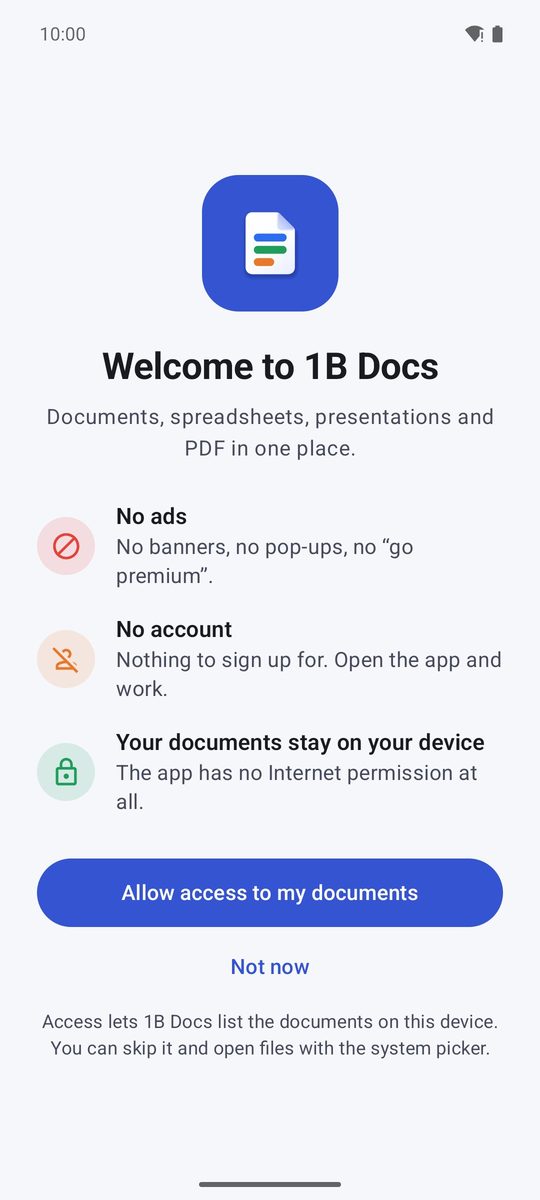
The first time
The welcome screen offers Allow access to my documents. With it, 1B Docs lists every document on your device and can save straight into your folders. Android asks for “access to all files”: turn on the switch next to 1B Docs and go back.
You can tap Not now instead. The app works the same: you open files with the system picker or from other apps, and you can allow access later in Settings › Access to all files.
The app has no Internet permission at all, so nothing you open can leave the device on its own.
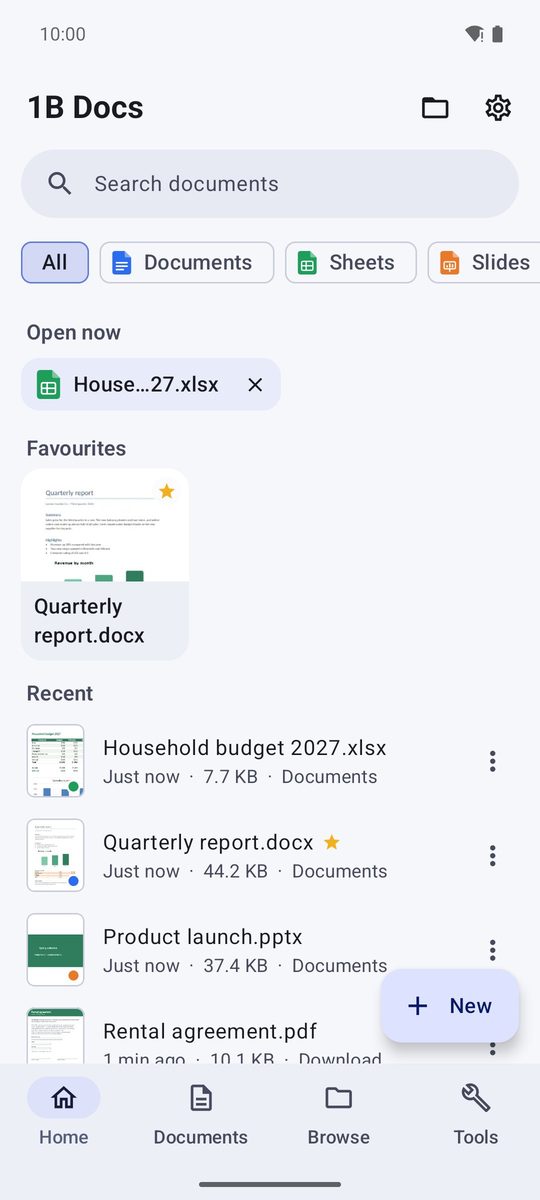
Home and the four tabs
Home shows Open now (documents you left open), your Favourites and your Recent files, each with a preview of its first page. The chips at the top filter by type: All, Documents, Sheets, Slides, PDF, Text and Other.
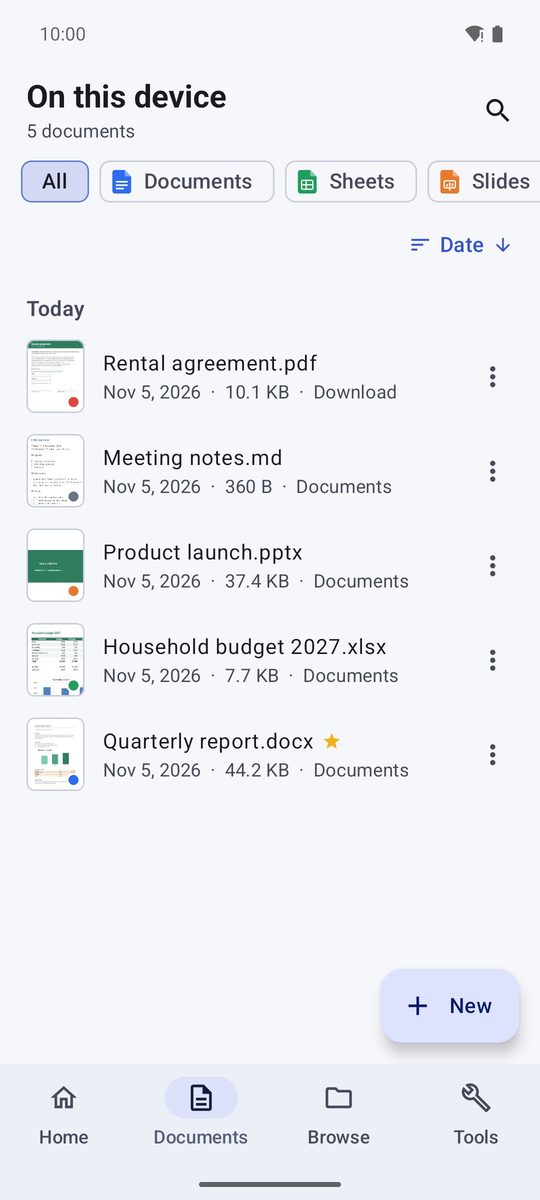
Documents lists every document on the device, Browse goes through your folders and Tools gathers the PDF tools. The bar at the bottom switches between them; on a tablet or an unfolded phone it moves to the side.
Open a document
You can have up to five documents open at once. Keep open and go to Home in the ⋮ menu takes you back to Home without closing it, and you return to it from Open now.
- Tap any document on Home, Documents or Browse.
- To pick a file from anywhere (Downloads, Drive, a USB drive…), tap the folder icon at the top (Open a document).
- From another app (an email attachment, a WhatsApp file, your file manager), choose 1B Docs in Open with… or in the list Android shows.
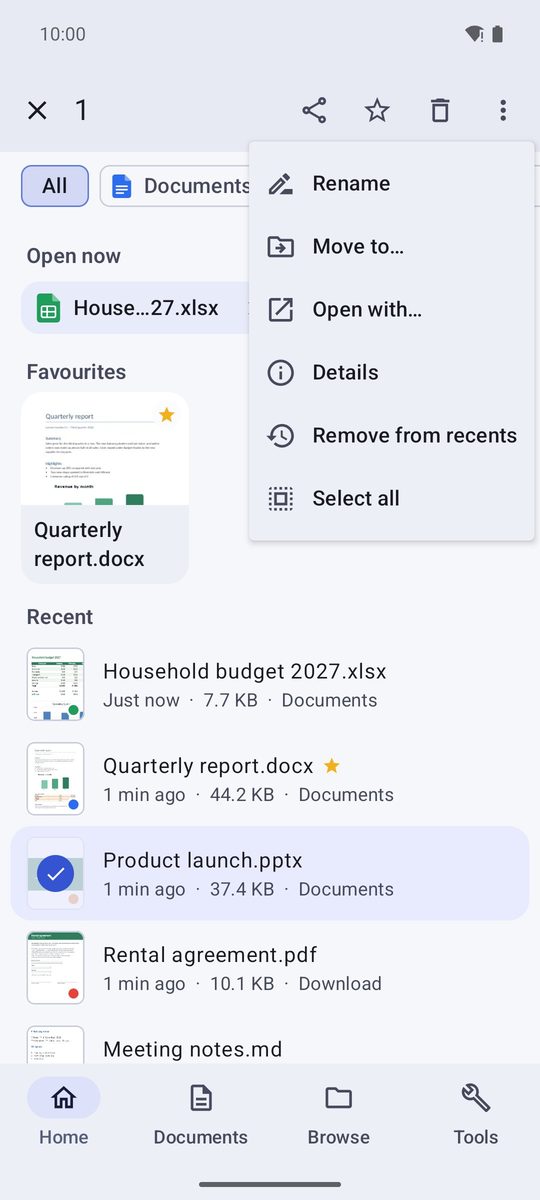
Favourites, renaming and other actions
Touch and hold a document to select it, then tap others to add them. The bar at the top has Share, Add to favourites and Delete, and the ⋮ menu has Rename, Move to…, Details, Open with… and Remove from recents.
Remove from recents only clears it from the list; the file stays where it is.
Find a document
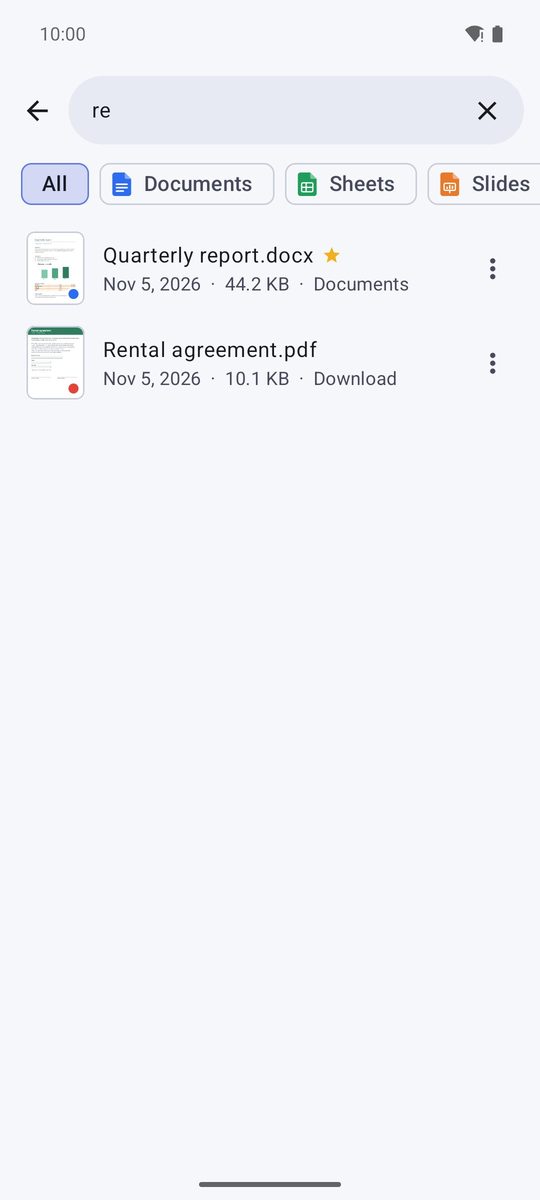
Tap Search documents at the top of Home and type part of the name: results come from your recent documents and, with access allowed, from everything on the device. Accents and capitals don't matter.
Settings
The gear on Home opens Settings: light or dark theme, Language, how PDFs scroll (PDF page scrolling), Keep screen on, the text editor options, Default save folder and Clear recent documents.
Written for 1B Docs 1.0 on Android 8 or later, with real screenshots and invented example documents.