Chapter 6 · Guide · 1B Terminal
Snippets and the extra keys bar
Typing long commands on a phone is slow. Snippets save them for one tap, and the keys bar gives you the keys a phone keyboard doesn't have.
Create a snippet
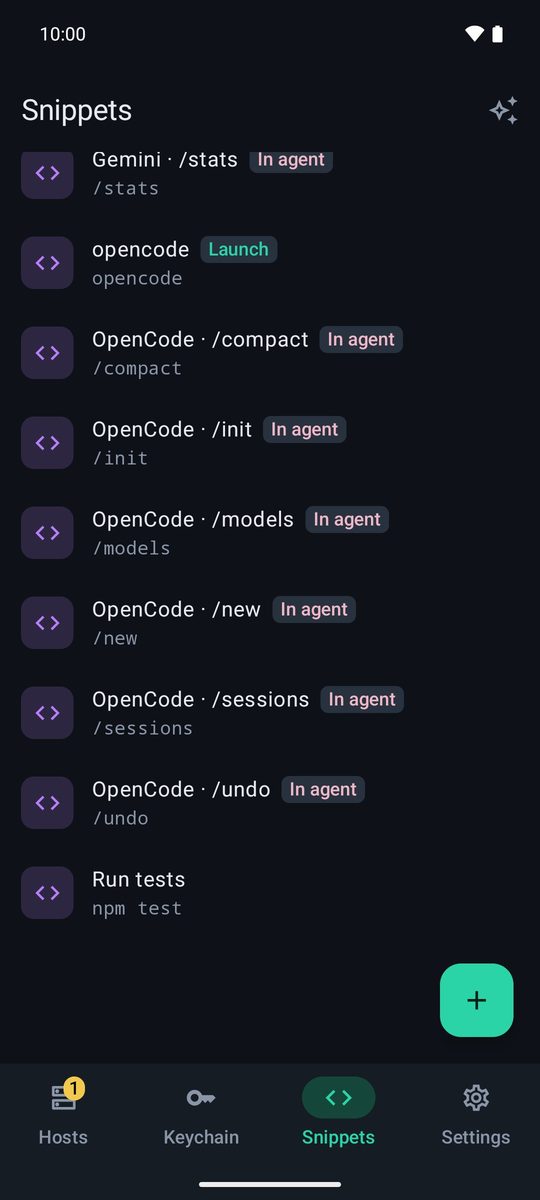
- Open the Snippets tab and tap + (New snippet).
- Give it a Name and type the Command.
- Turn on Run when sent (adds Enter) if you want it to run at once; leave it off to review it first. Save.
Use a snippet
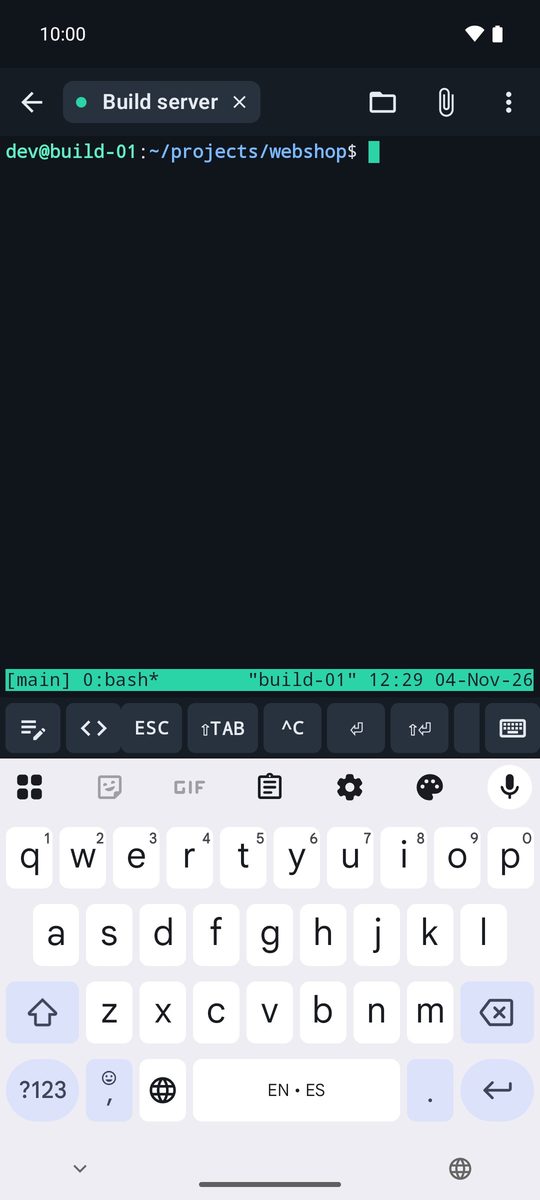
In the terminal, tap the </> button on the keys bar (or ⋮ › Snippets) and choose one. The text is typed into the session; with Run when sent the Enter goes separately a moment later, so agents don't take it as a paste.
Snippets for AI agents
Add AI agent snippets adds ready-made ones to launch agents (claude, codex, opencode…) and to use inside them (/compact, /model, /resume…). They're tagged Launch or In agent, and you can edit or delete them like any other. Tapping it again only adds the ones you're missing.
The extra keys bar
Above the keyboard you have ✎ (writing bar), </> (snippets) and a keys bar that scrolls sideways. CTRL and ALT apply to the next key; long-press them to lock them on.
There are two bars. AI agents (the default): ESC, ⇧TAB, ^C, ⏎, ⇧⏎, arrows, / @ TAB CTRL ALT ! # ^R | ~ - PGUP PGDN. Standard: ESC, TAB, CTRL, ALT, arrows, | / -, HOME, END, PGUP, PGDN, DEL and F1 to F12.
Choose the bar
Settings › AI agents › Extra keys bar sets the bar for the whole app. Each host can use its own in the host editor (Extra keys bar under Session, or App setting to follow the app), and you can switch it from the ⋮ menu of the terminal (it's saved in the host). Settings › Terminal › Show extra keys bar hides it completely.
Written for 1B Terminal 1.2 with real screenshots of the app and example data.