Chapter 3 · Guide · 1B Terminal
AI agents and alerts: Claude Code, Codex, OpenCode
1B Terminal is made for working with coding agents such as Claude Code, Codex or OpenCode: you start a task, put the phone away and come back when the agent asks for you.
Alerts when the agent needs you
When a session you aren't looking at rings the bell or sends a notification (OSC 9 or OSC 777), the app shows an Android notification. Tapping it opens that session. It never alerts you about the session on screen, and at most once every 5 seconds per session.
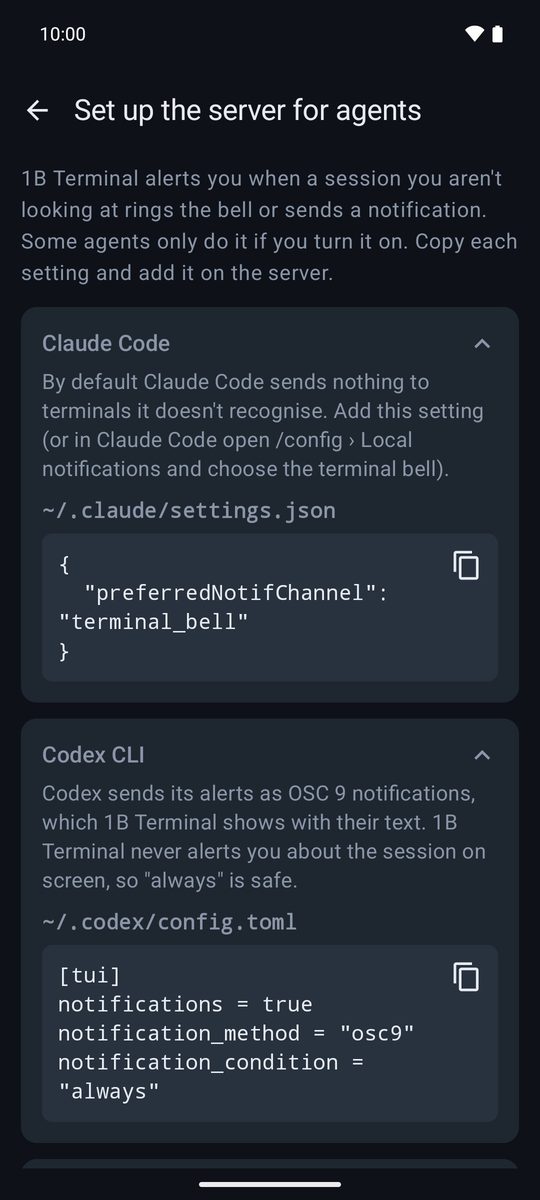
Some agents only send alerts if you turn them on. Settings › AI agents › Set up the server for agents shows the exact settings for Claude Code, Codex, OpenCode and tmux, ready to copy.
When the agent doesn't notify
Turn on Settings › Notifications › Notify when output goes quiet. When a session has been busy for a while and then stops printing, the app alerts you: the program has probably finished or is waiting for an answer. You choose how many seconds of silence count.
Sessions waiting for you
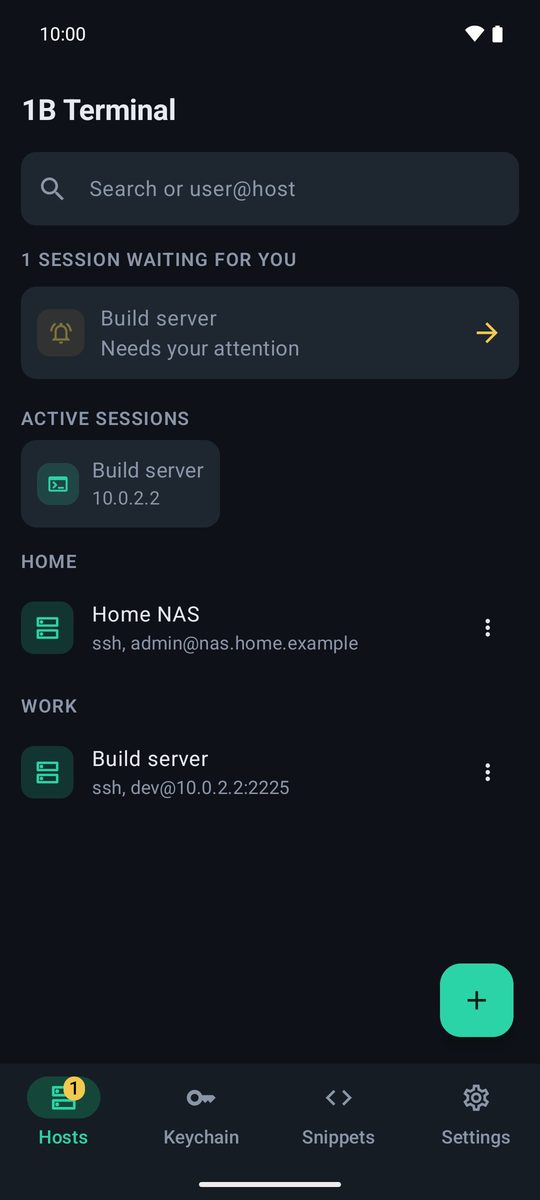
Sessions with an alert you haven't seen are listed at the top of Hosts (“1 session waiting for you”) with Open session, the Hosts tab shows a badge and the session's tab shows a bell. Agents that report their status (OSC 7501) also show Waiting for you, Finished or Ended with an error on their tab.
Reply from the notification
Each alert has Reply, Enter and y buttons. Reply lets you type or dictate an answer that is sent with Enter; Enter confirms the option the agent suggests; y says yes. You can turn the buttons off in Settings › Notifications › Reply from the notification. They're hidden while the app lock is on.
Prompt mode for long instructions
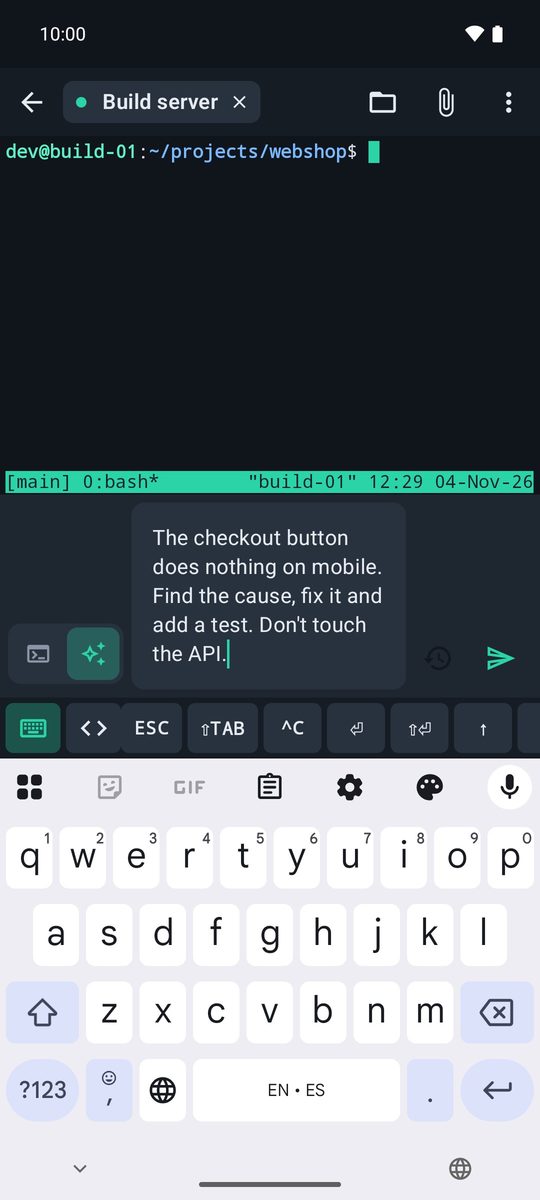
The ✎ button on the keys bar (Write a prompt or long text) opens a writing bar. It has two modes, remembered for each host:
Command mode: one line, for shell commands. Prompt mode (natural text for AI agents): several lines, the text is sent exactly as written (capitals and punctuation included) and Enter on the keyboard adds a new line; send it with the button. Earlier prompts are in Recent prompts.
In Settings › AI agents, Send prompts as a paste keeps line breaks from sending the prompt early, and Press Enter after the prompt can be turned off so you review the text before sending it.
Dictate with Gboard
To dictate, tap Gboard's microphone: it types straight into the terminal or into the writing bar. In Settings › Voice dictation (Gboard) you can make the first letter lowercase and remove the trailing period that dictation adds to commands. In Prompt mode the text is left exactly as you dictate it.
The AI agents keys bar
The keys bar comes set to AI agents: ESC to interrupt, ⇧TAB to change mode, ^C, ⏎, ⇧⏎ for a new line without sending, arrows to pick options, / for commands and @ for files. More in the Snippets and keys chapter.
Written for 1B Terminal 1.2 with real screenshots of the app and example data.