Chapter 4 · Guide · 1B Terminal
Files over SFTP and “Send to agent”
The files on your server, on your phone, over the same SSH connection: no second login and nothing to install on the server besides SFTP, which almost every SSH server includes.
Open the files
In a session, tap the folder icon at the top or ⋮ › Files. From Hosts, long-press a host (or use its menu) and choose Files (SFTP): it uses an open session to that server or opens one. With tmux, the folder you start in is the one your tmux session is in; otherwise, your home folder.
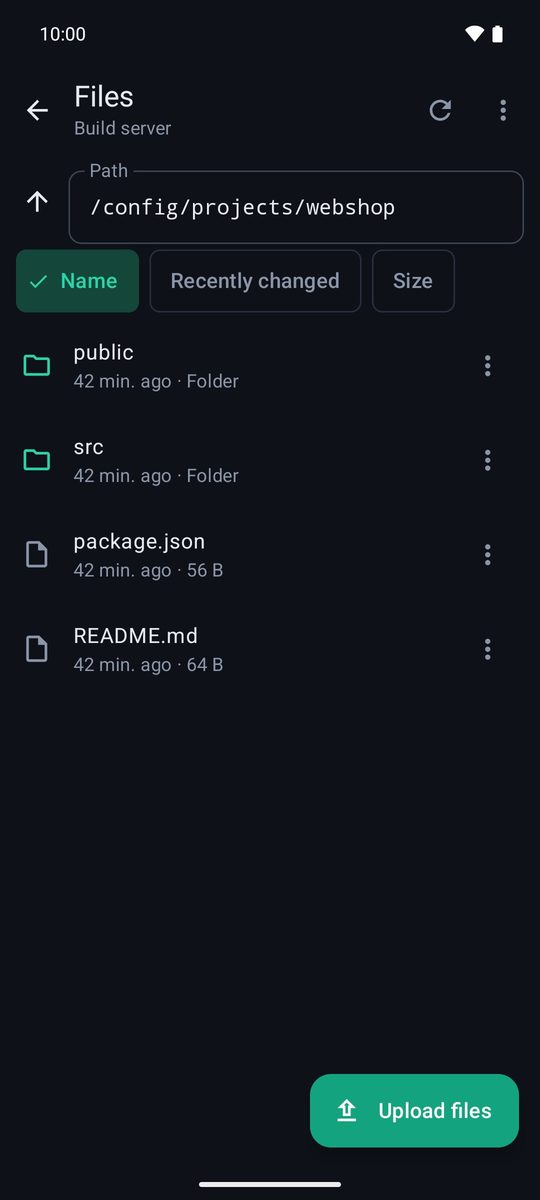
Browse
Tap a folder to open it and Parent folder to go up. You can type a Path (also ~/…) and tap Go. Sort by Name, Recently changed or Size, and turn on Show hidden files in ⋮. Back to the terminal takes you to the session.
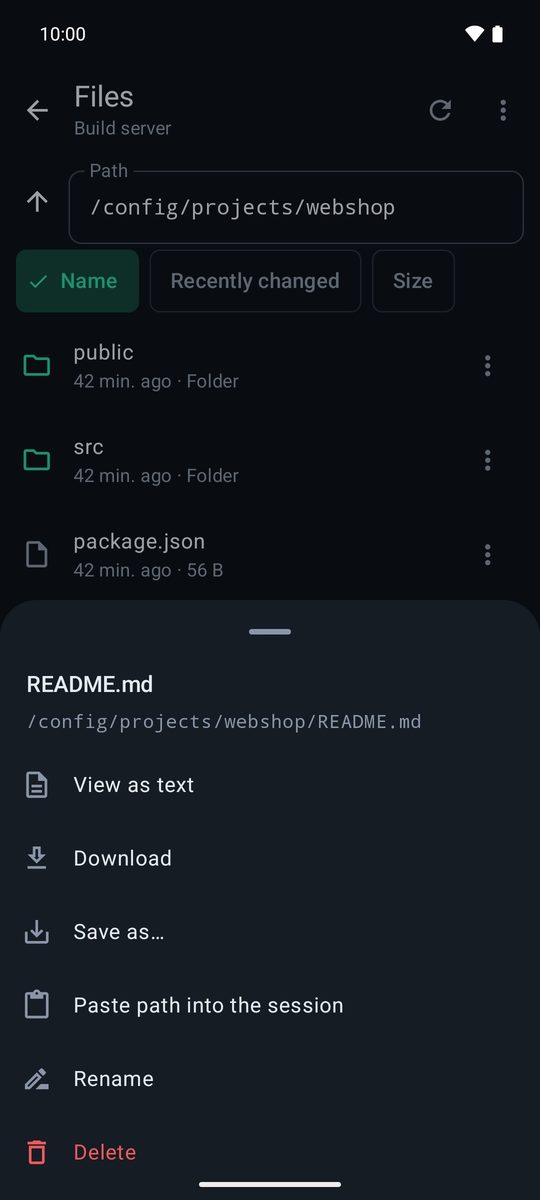
Download, view, rename and delete
Tap a file (or long-press anything) to see its options: View as text, Download (to Downloads/1B Terminal), Save as… to choose where, Paste path into the session, Rename and Delete. Deleting asks for confirmation and can't be undone. Transfers show their progress and you can cancel them; a half-uploaded file is deleted.
Upload files
Tap Upload files and pick one or more files on your phone. They're uploaded to the folder you're looking at; if a name already exists, the app adds a number instead of overwriting it.
Send to agent
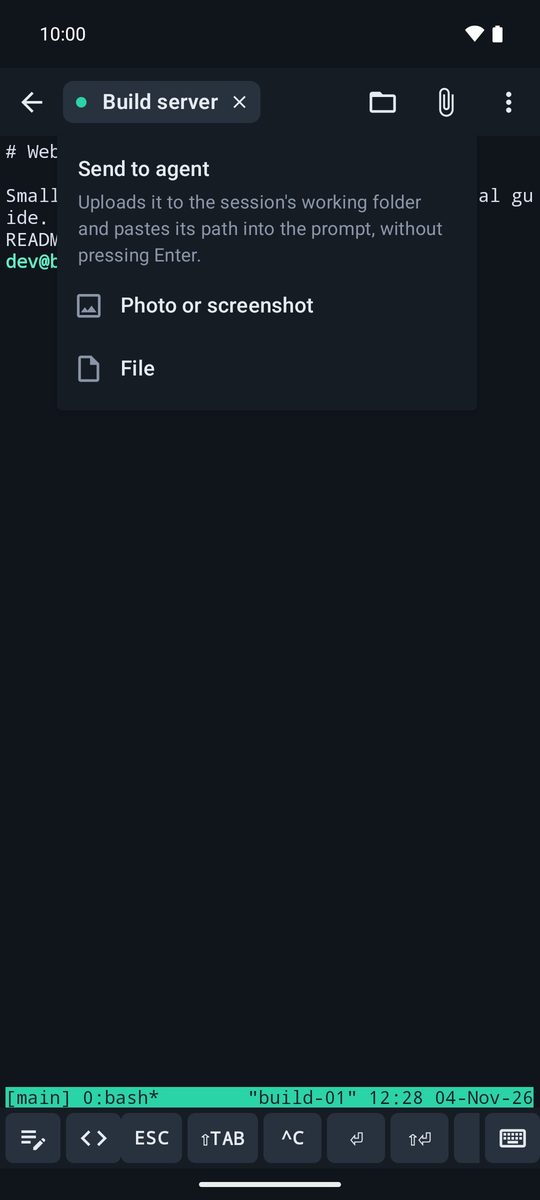
The paperclip icon in the session (Send to agent) uploads a Photo or screenshot or a File to the session's working folder and pastes its path into the prompt, without pressing Enter. Then add your question (“why does this screen look wrong?”) and send it.
Agents such as Claude Code or Codex can open an image when you give them its path. The file stays on your server: delete it when you no longer need it.
Written for 1B Terminal 1.2 with real screenshots of the app and example data.